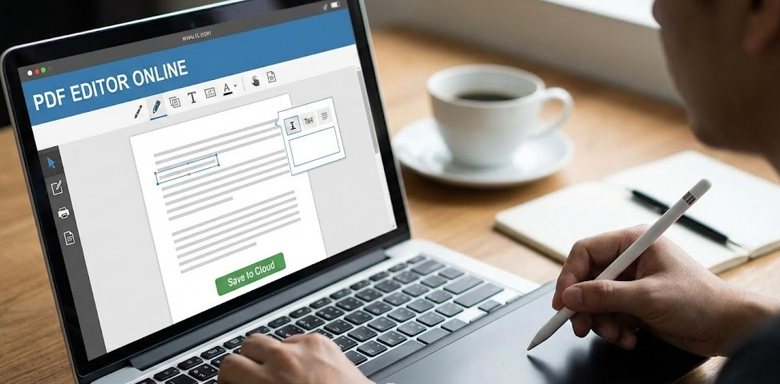
If you work with PDFs regularly, you already know the frustrating part: the format is great for sharing, but annoying when you need to make even a small change. Maybe a client sent the wrong address, your team needs one extra clause added to a contract, or you must highlight key sections before a meeting. In the past, that meant hunting down expensive software, installing it, and hoping your laptop could handle it.
Today, you can handle most everyday PDF tasks directly in your browser. Online editing is not just convenient. It can be quicker, easier to learn, and more flexible when you are switching between devices. Whether you are a student, freelancer, office manager, or business owner, knowing how to use an online PDF editor efficiently can save time and reduce errors.
This guide walks you through a simple and realistic workflow that helps you edit, annotate, sign, and share PDF files online while keeping quality high.
Why PDFs are hard to edit in the first place
PDFs were designed to preserve layout. That is exactly why they look consistent on every device. Fonts, spacing, and formatting stay locked in. The downside is that editing is not as straightforward as editing a Word document.
Most online editors solve this by offering tools that let you work on top of the PDF. Think text boxes, shapes, highlights, stamps, and signatures. Some platforms also support direct text edits if the PDF has selectable text and is not just an image.
The goal is not to fight the PDF. The goal is to use the right feature for the right need.
Common PDF editing tasks you can do online
People usually open a browser based PDF editor to do one of these tasks:
Add or remove text for quick fixes
Highlight important lines for review
Insert images such as logos or screenshots
Fill forms and check boxes
Add signatures and initials
Merge documents into a single file
Split a long PDF into smaller parts
Reorder pages or delete unnecessary pages
Compress the file for easier sharing
When you understand which task you need, you can pick the most efficient tool and avoid messing up formatting.
Step by step workflow: edit a PDF online the clean way
Here is a workflow you can use almost every time.
Step 1: Start with a clean file
Before you upload anything, confirm the PDF is the correct version. If it came from email threads, rename it clearly. For example, “Client Agreement v3 FINAL” is better than “agreement latest new final2”.
Also check if the file is scanned. If the content is a scanned image, you may need OCR to make text selectable. Some online tools include OCR, but not all.
Step 2: Choose a reliable web based tool
Not all platforms offer the same features. Some focus on annotations. Others focus on forms, page management, or conversions.
If you want a quick way to manage multiple file actions in one place, you can use smart web utilities that support splitting, merging, compressing, and converting in addition to editing.
If your focus is browser based editing itself, a browser friendly PDF editing solution will be your core tool for adding text, comments, highlights, and signatures without installing anything.
Use whichever combination fits your workflow. Many people keep one tool for page management and another for actual edits.
Step 3: Edit text carefully to avoid messy formatting
If your editor allows direct text edits, keep changes minimal and recheck spacing. Direct editing may shift line breaks if fonts do not match perfectly.
When direct editing is not available, the best approach is to add text overlays. Use a text box and match the font size and alignment as closely as possible. Zoom in to 125 percent or 150 percent to line things up cleanly.
A small tip: when adding replacement text over existing text, place a white rectangle behind your new text to cover the old content. Many online editors let you add shapes. Set fill color to white and remove borders for a seamless look.
Step 4: Use annotations to speed up reviews
If you are collaborating, annotations are often better than edits. Highlight what needs attention and add short comments. That way, the original text stays intact and your reviewer can approve changes quickly.
Good annotation habits include:
Highlight only what matters
Keep comments short and actionable
Use consistent colors if multiple people are reviewing
Add timestamps or initials if required by your team
Step 5: Add signatures the professional way
E signatures are one of the most popular reasons people use online PDF tools. Most editors let you draw a signature with a trackpad, type it in a stylized font, or upload an image of your signature.
For a clean result:
Use a transparent signature image if uploading
Keep size consistent across pages
Align signatures with the signature line
Add date fields if needed
If the document is sensitive, make sure you download the signed version immediately and store it securely.
Step 6: Confirm quality before downloading
Before exporting the final PDF, do a quick quality check:
Scan every page quickly at 50 percent zoom
Zoom into edited areas at 150 percent
Confirm nothing is cut off at page edges
Check file size if you plan to email it
If the file is too large, compress it after editing. Compression can slightly reduce image quality, so compress after you finish edits, not before.
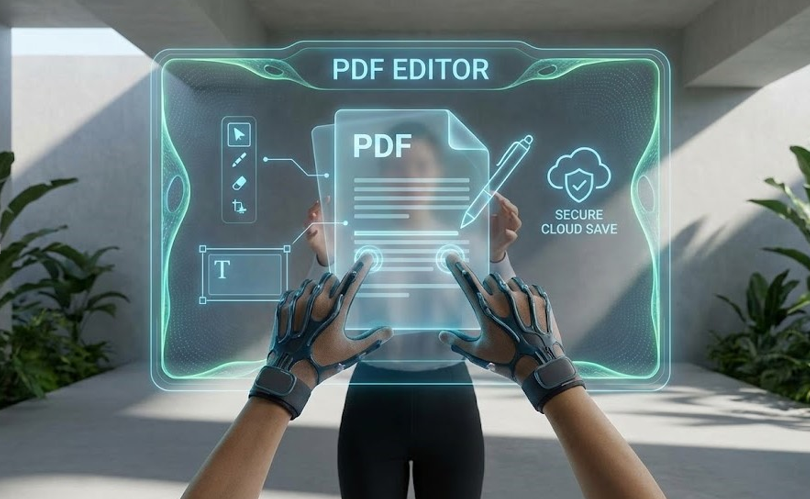
Avoid these common mistakes
Over editing when annotation is enough
Ignoring scanned PDFs that need OCR
Forgetting to review page order after merging files
Placing text boxes with the wrong font size
Saving without checking output quality
Using heavy compression before finalizing changes
A little care upfront prevents the classic situation where a PDF looks perfect on your screen and broken on someone else’s.
See also: Best AI Video Creation & Editing Tools in 2026 (Founder-Tested Comparison)
Use cases where online editing shines
Remote work and quick approvals
When your team is spread across locations, you need a workflow that does not depend on one computer. Browser based PDF editing means you can review and update files during a call, then immediately share the updated version.
Students and teachers
Assignments, feedback, and grading often come in PDF form. Online tools make it easy to comment, highlight, and add notes without printing.
Small businesses
Invoices, proposals, onboarding documents, and agreements often require quick updates. Online PDF editing helps you keep documents moving without waiting for IT.
How to keep your documents safer online
Security matters, especially for contracts, medical files, or financial records. While different platforms have different privacy policies, you can still protect yourself with simple habits:
Avoid using public Wi Fi for sensitive documents
Use a trusted browser and keep it updated
Remove unnecessary personal data before uploading
Download the final version and delete temporary copies
Use strong access controls in your storage system
If your organization has compliance requirements, choose a tool that meets those needs and follow internal rules.
Final thoughts
Online PDF editors can be a real productivity upgrade when you use them with intention. Focus on the task, choose the right tool, and keep your workflow clean. Whether you are making a small correction, collecting signatures, or preparing a document for review, the browser can handle more than most people realize.
When you combine smart web utilities for file management with a browser friendly PDF editing solution for editing and signing, you get a smooth process that fits modern work.